How to Check Whether Your Wi-Fi Uses WPA2 or WPA3
Check WPA2 or WPA3 in your router and device settings. MyIPScan can review public browser-session signals afterward, but it cannot verify Wi-Fi encryption.
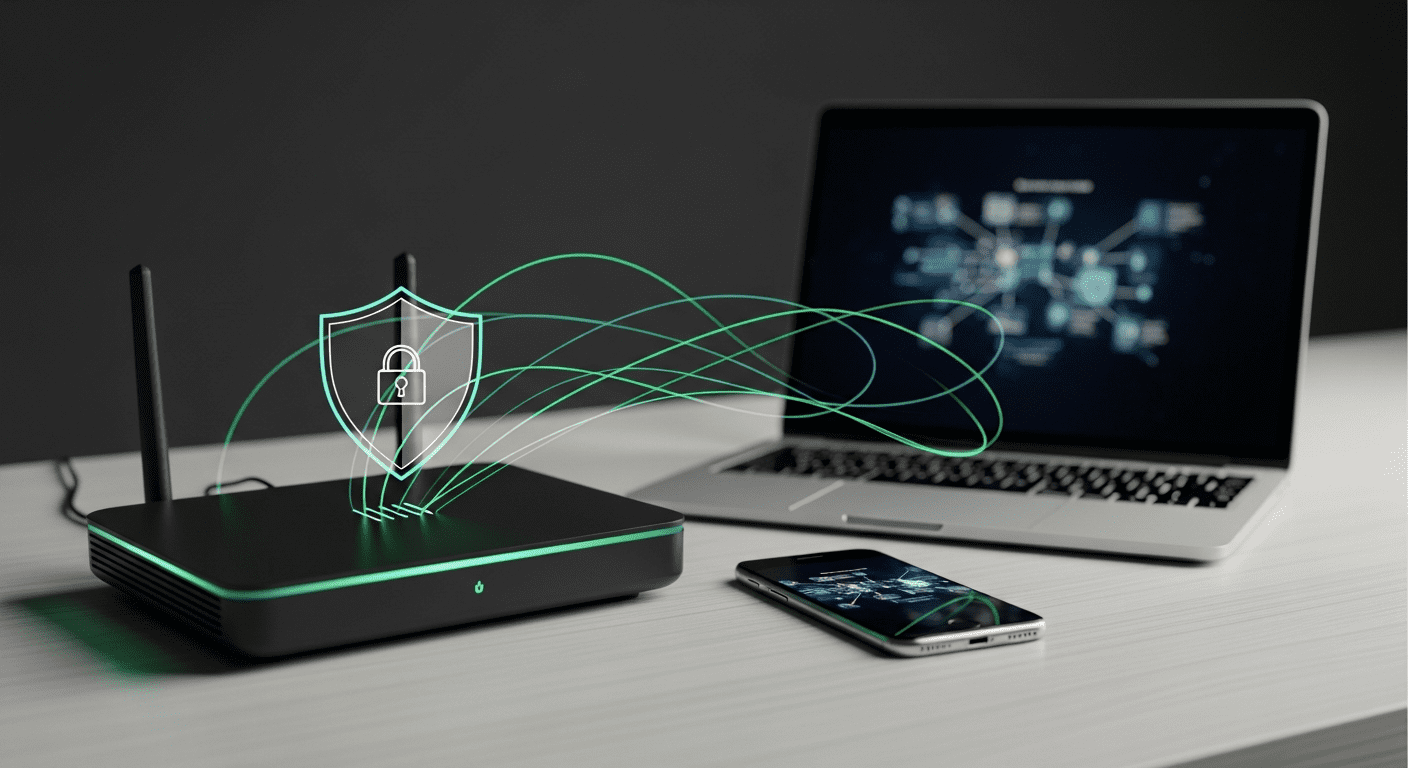
Check the router first, then review public signals
Best next step: confirm WPA2 or WPA3 inside the router admin page or device Wi-Fi details. MyIPScan cannot inspect the private radio encryption used between your device and router.
Optional MyIPScan follow-up: after changing router, VPN, or DNS settings, run the Public Exposure Report or What Is My IP to review public browser-session signals. Treat this as context, not a Wi-Fi encryption verdict.
Quick Answer
Check whether Wi-Fi uses WPA2 or WPA3 in your router admin page or the saved Wi-Fi network details on the device. That setting protects the local wireless link between your device and the access point.
A public browser tool cannot verify router encryption mode. After you change router, VPN, or DNS settings, MyIPScan can review visible public IP, DNS, WebRTC, IPv6, and browser-session signals, but it does not certify Wi-Fi security.
What WPA2 And WPA3 Actually Tell You
Security Type Is Not The Same As Signal Strength
A strong Wi-Fi signal only means your device can hear the access point clearly. It does not prove that the network is using modern encryption. WPA2 and WPA3 describe how the wireless connection protects traffic over the local air link, while signal strength describes radio quality.
If the network details show WPA2-Personal or WPA3-Personal, the connection is using a modern home Wi-Fi security family. If it shows WEP, WPA, no security, or an open network warning, the network should be treated as outdated or risky even if the signal icon looks strong.
Transition Mode Can Be Normal
Many routers use WPA2/WPA3 mixed mode so older devices can still connect while newer devices use WPA3 where possible. Mixed mode is not automatically bad, but it means the network is accepting more than one kind of client. If all your important devices support WPA3, a WPA3-only setting can reduce compatibility tradeoffs.
Do not judge the network by the label alone. Check whether the router also has WPS enabled, whether guest networks use the same password, whether old devices force weaker settings, and whether the firmware is still maintained by the vendor.
Check The Router Or Access Point First
Router Admin Page
The most reliable place to confirm how to check if wifi uses wpa2 or wpa3 is the router or access point configuration. Open the router app or admin page, find Wireless, Wi-Fi, Security, or WLAN settings, and look for the security mode field. Write down the exact label before changing anything.
For a home router, the preferred setting is usually WPA2-Personal, WPA3-Personal, or WPA2/WPA3-Personal transition mode. Avoid WEP, WPA, TKIP-only settings, and open networks for normal private use. If the router supports separate 2.4 GHz, 5 GHz, and 6 GHz networks, check each band because they can have separate security settings.
Companion App
Modern mesh systems often hide technical settings inside a mobile app. Look for network details, advanced Wi-Fi, security mode, or compatibility mode. Some apps simplify the label, so a second check from a laptop or router web page is useful when the app only says secure without naming WPA2 or WPA3.
If the app warns that changing security mode may disconnect older devices, treat that as a compatibility warning rather than a reason to keep weak security forever. Make a device list first, update older devices if possible, then test one change at a time.
Check From Your Devices
Windows And macOS
On Windows, open the connected Wi-Fi network properties and look for security type. On macOS, hold the Option key while opening the Wi-Fi menu or review network details in System Settings, depending on the version. The wording can vary, but the field usually names WPA2, WPA3, WPA2/WPA3, WPA, WEP, or none.
A device-side check tells you what that specific device negotiated. That matters because a router may advertise mixed mode while one older laptop connects with a weaker option than a newer phone. Repeat the check on the devices that carry sensitive traffic.
iPhone, iPad, And Android
Mobile systems usually show fewer raw wireless details than desktop systems. Still, they often warn about weak security, privacy warnings, or unsupported settings. Android devices and vendor skins may expose the security type in network details; iOS may show weak-security warnings when the access point uses outdated protection.
If a phone does not show the exact WPA label, use it as a warning layer, not the only source of truth. Confirm the router setting, then verify with a laptop or another device that can display the negotiated security type.
What The Result Means
| Result | Meaning | Best Next Step |
|---|---|---|
| WPA3-Personal | Modern home Wi-Fi security where supported | Keep firmware updated and use a strong password |
| WPA2-Personal | Still common and usually acceptable for home use | Use AES/CCMP, avoid TKIP, and plan WPA3 when devices support it |
| WPA2/WPA3 mixed mode | Compatibility mode for older and newer devices | Check whether old devices are forcing weaker settings |
| WPA, WEP, or open | Outdated or unprotected for normal private use | Change router security mode or replace unsupported hardware |
This table is a starting point, not a complete security audit. A WPA3 label does not fix a weak password, exposed router admin page, stale firmware, malicious devices already on the network, or unsafe account behavior. Treat the Wi-Fi mode as one layer in the larger home-network checklist.
What MyIPScan Can And Cannot Verify
After you confirm the local Wi-Fi security mode, use the MyIPScan public IP checker to see the public network address websites receive. This is useful because a secure Wi-Fi link and a public IP result answer different questions: one is about the local wireless connection, the other is about internet-facing routing.
If you are also checking resolver behavior, compare the result with a related diagnostic such as the DNS leak test. DNS checks do not prove WPA2 or WPA3 either, but they help separate local Wi-Fi protection from public browsing and resolver signals.
Authority Check
Use one serious source to ground the technical explanation. For this article, NIST Guidelines for Securing Wireless Local Area Networks is a suitable reference because it anchors the Wi-Fi security discussion in a recognized technical or security source rather than a thin settings walkthrough.
Authority sources should support the specific claim in the paragraph. A standards or security reference does not need to replace practical steps, but it keeps the article from overclaiming what one device screen or router label can prove.
Common Mistakes
Assuming A Lock Icon Means WPA3
A lock icon usually means the network requires authentication. It does not necessarily mean the network uses WPA3, and it does not tell you whether the router still allows weaker compatibility modes.
Checking Only One Device
One device may negotiate a different mode than another. If the router is in mixed mode, check the laptop, phone, streaming device, and any older hardware that stays connected all day.
Ignoring Guest Networks
Guest networks can have separate security settings. If guests, smart-home devices, or old tablets use a guest SSID, check that network separately and avoid sharing the main network password when a guest network is enough.
Safe Change Checklist
Before changing router security mode, save the current settings, list devices that must reconnect, update router firmware, and make sure you know the admin password. Change one setting, reconnect a test device, and confirm the exact security type again.
If important devices fail after switching to WPA3-only mode, use WPA2/WPA3 transition mode while you plan replacements. Keeping secure compatibility for a short period is better than forcing a change that breaks updates, alarms, work devices, or family connectivity without a rollback plan.
Router Settings Worth Checking
Encryption Mode And Cipher
When the router exposes both security mode and cipher, check both fields. WPA2 with AES or CCMP is the normal modern baseline, while TKIP is a legacy compatibility setting that should be avoided when the router gives you a choice. WPA3-Personal normally uses newer authentication behavior, but mixed mode can still allow WPA2 clients.
If the admin page says WPA2/WPA3 transition mode, treat that as a compatibility setting rather than a security failure. It lets older devices connect while newer devices can use WPA3. The tradeoff is that the network remains open to older connection behavior, so it is worth reviewing which devices still need that compatibility.
WPS, Guest Networks, And Old Hardware
Disable WPS if the router still offers it. Push-button and PIN-based shortcuts were designed for convenience, not long-term account hygiene, and they can undermine the benefit of a strong Wi-Fi password. If a device is hard to reconnect without WPS, document it and plan a controlled replacement path.
Guest networks need the same review as the main network. Some routers let the guest SSID use a weaker password, a separate security mode, or a different band. A guest network is useful, but it should not become a permanent home for forgotten devices with outdated encryption.
How To Read Device Results
One Router Can Produce Different Device Labels
A laptop, phone, smart TV, and camera may report different details because each device negotiates its own connection. A newer laptop may show WPA3 while an older device on the same SSID connects with WPA2. That is why checking only one device can miss the weakest always-on device in the house.
For devices that do not show the exact mode, look for weak-security warnings, privacy warnings, or messages about unsupported network settings. Those warnings are not a full audit, but they are useful signals that the router may still be accepting old protection modes.
When The Label Looks Vague
Some operating systems simplify the label to secure, private, or encrypted. If the device does not name WPA2 or WPA3, use the router admin page as the source of truth and verify from a second device that exposes more wireless details. The goal is to confirm the actual setting, not merely find a reassuring word.
If the device shows an unexpected result after you change the router, forget the saved network and reconnect. Old saved profiles can preserve outdated assumptions, especially after you reuse the same network name and password while changing the security mode behind it.
Upgrade Path Without Breaking The Network
Move In Small Steps
Start by recording the current SSID, security mode, password rules, guest network status, and device list. Then update router firmware before changing the security mode. Firmware updates can change the available WPA options and may fix compatibility problems that would otherwise look like device failures.
After the update, switch from weak modes to WPA2-Personal or WPA2/WPA3 transition mode first, then test the devices that matter most. Once the network is stable, consider WPA3-only mode if all important devices support it. This staged path keeps the network usable while still moving away from weak legacy settings.
Know When Replacement Is The Real Fix
If a router only supports WEP, WPA, TKIP-only WPA2, or unsupported firmware, replacing it is usually more practical than trying to tune around the limitation. The same is true for devices that force the entire network into a weaker compatibility mode long after security updates have stopped.
For apartments, shared houses, and small offices, password history matters too. If many people have known the same Wi-Fi password for years, changing the security mode without rotating the password leaves an old trust problem in place. Use a unique password and update only the devices that still need access.
Security Mode By Environment
Home Networks
For a normal home network, WPA2-Personal with AES or WPA3-Personal is the practical target. WPA2/WPA3 transition mode is useful while older phones, laptops, printers, consoles, or smart-home devices are still being replaced. Review the connected device list after the change so a forgotten device does not quietly keep the network in compatibility mode forever.
Do not reuse an old Wi-Fi password after changing the security mode. A stronger mode protects the wireless exchange, but anyone who still knows the shared password may be able to reconnect. If the password has been shared widely, rotate it and reconnect only the devices that still belong on the network.
Small Offices And Shared Spaces
In a small office, document who owns the router, who can change wireless settings, and how guest access is separated from staff devices. WPA2 or WPA3 is only one part of the control. Staff turnover, shared passwords, unmanaged printers, and old point-of-sale devices can create more risk than the headline security label suggests.
If the router supports separate staff, guest, and device networks, keep them separated. Guest traffic should not need access to admin panels, file shares, cameras, or printers unless there is a specific business reason. Segmentation does not replace good encryption, but it limits what one weak or untrusted device can reach.
Troubleshooting After A Change
Devices Fail To Reconnect
If a device cannot reconnect after switching modes, forget the saved network on that device and join again with the current password. If it still fails, check whether the device supports the selected mode and band. Some older devices can connect to WPA2 on 2.4 GHz but fail on WPA3-only or on newer band settings.
When a critical device cannot support the new mode, use a temporary compatibility plan rather than weakening every network permanently. You can keep WPA2/WPA3 transition mode for a defined period, move the device to a guest or isolated network, or replace the hardware when security updates are no longer available.
The Router Keeps Reverting Settings
If the router app keeps reverting to a weaker mode, check firmware, mesh-node compatibility, ISP-managed profiles, and band-specific settings. Some systems apply a global compatibility mode when one mesh node or extender does not support the stronger option. In that case, update or remove the limiting device before assuming the main router is broken.
ISP-supplied routers may hide advanced controls or restore provider defaults after remote updates. If you cannot select a modern mode, contact the provider, request updated hardware, or use a personally managed router where the ISP setup allows it. The key is to avoid accepting WEP, WPA, or open Wi-Fi as a normal long-term setting.
Final Verification
Confirm From More Than One Place
After changing the router, verify the setting in the admin page, then confirm from at least one device that shows the negotiated security type. This catches cases where the router advertises mixed mode but a specific device still connects with an older option. Repeat the check on devices that stay connected all day.
Finish by checking public internet signals separately. The Wi-Fi security mode protects the local wireless link, while an IP checker, DNS test, or browser leak test tells you what websites can see after traffic leaves the router. Keeping those layers separate makes the result easier to trust and easier to explain.
FAQ
How to check if wifi uses wpa2 or wpa3?
Check the saved network details on your device first, then confirm the router or access point security mode in its admin page or companion app.
Is WPA3 always better than WPA2?
WPA3 is newer, but the practical answer depends on device support, router settings, mixed-mode compatibility, and whether weak legacy modes are still enabled.
Can an IP checker show my Wi-Fi security type?
No. An IP checker shows public internet-facing signals. Wi-Fi security mode is a local wireless setting that must be checked on the device or router.
What should I do if the network uses WPA or WEP?
Treat WPA and WEP as outdated. Update the router, switch to WPA2-Personal or WPA3-Personal where supported, and use a strong unique Wi-Fi password.