VPN Routers: Clear Privacy Guide
vpn routers: clear steps, checks, common mistakes, and safe next actions for reading the result without overclaiming privacy or security.
Quick Answer
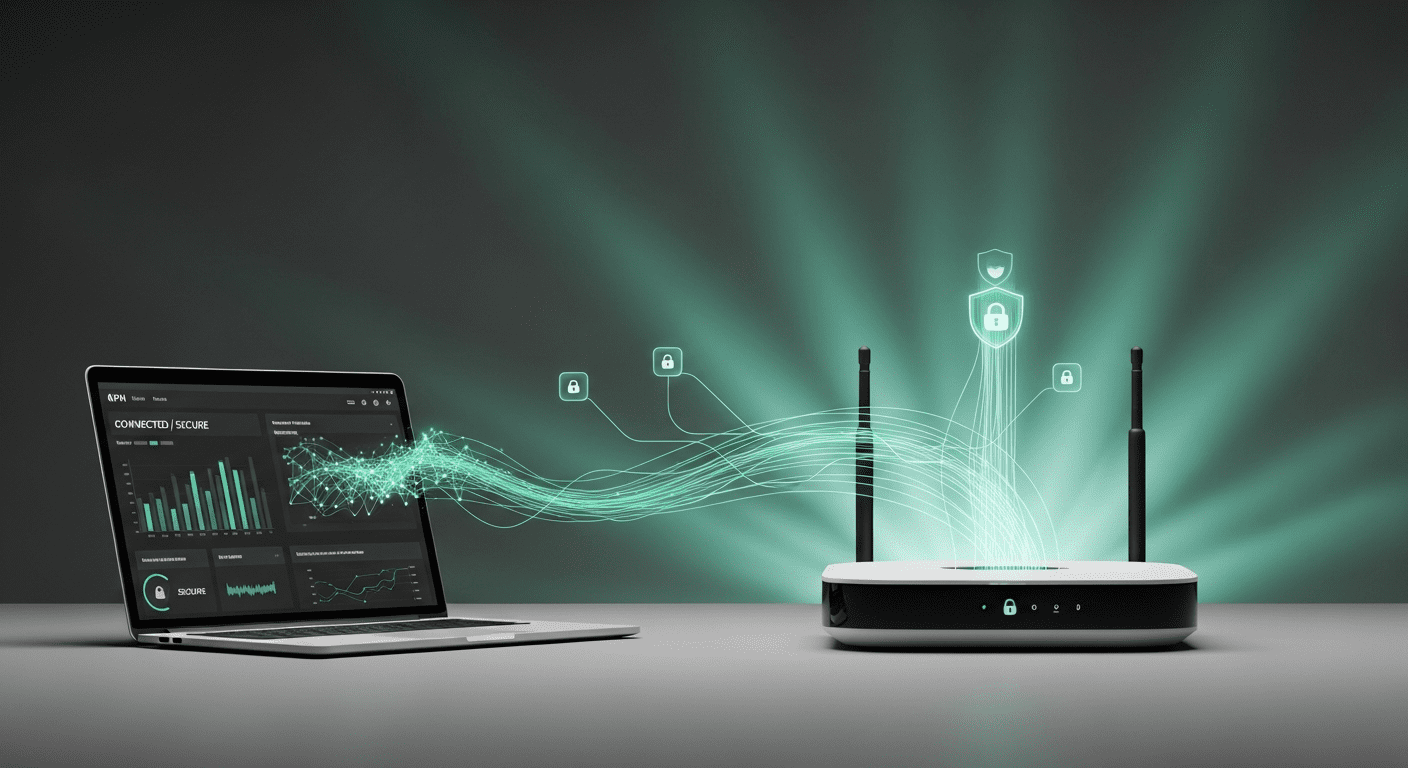
VPN routers encrypt network traffic at the router level, protecting every device that connects through them without requiring individual VPN apps. Unlike standard routers, VPN routers run VPN client software directly on the hardware, creating a secure tunnel for all connected devices—phones, tablets, smart TVs, and IoT gadgets included. This approach centralizes privacy control but introduces trade-offs in speed, configuration complexity, and the visibility of different network signals. Understanding what VPN routers actually protect, what they leave visible, and how to verify their behavior separates practical privacy decisions from marketing claims.
The core benefit is device coverage. A single VPN router connection protects devices that cannot run VPN apps natively, such as streaming boxes, game consoles, and smart home devices. The core limitation is that router-level encryption does not erase account identity, browser fingerprints, or application telemetry. A VPN router changes the visible network path, but it does not reset the signals that websites, apps, and platforms use to recognize returning users.
What VPN Routers Actually Do
VPN routers combine standard routing functions with VPN client capabilities. The router establishes an encrypted tunnel to a VPN server, then routes all outbound traffic through that tunnel before it reaches the internet. Incoming traffic follows the reverse path. This setup changes the public IP address visible to websites and services, replaces the ISP’s DNS resolver with the VPN provider’s resolver, and encrypts traffic between the router and the VPN server endpoint.
Standard routers forward packets between local devices and the ISP gateway. VPN routers add an encryption layer before forwarding. The local network remains unencrypted—devices communicate with the router over standard Wi-Fi or Ethernet—but traffic leaving the router travels through an encrypted tunnel. This distinction matters for threat modeling. A VPN router protects against ISP monitoring and public Wi-Fi interception, but it does not encrypt traffic within the local network or prevent a compromised device from leaking data.
Hardware Requirements and Performance
VPN encryption requires processing power. Consumer routers with weak CPUs struggle to maintain high speeds when running VPN client software. Encryption overhead reduces throughput, sometimes significantly. A router that delivers high throughput without VPN might drop to moderate throughput with VPN enabled, depending on the processor, encryption protocol, and VPN server load.
Router specifications that matter for VPN performance include CPU speed, available RAM, and support for hardware-accelerated encryption. Dual-core or quad-core processors handle VPN encryption more efficiently than single-core models. Routers with AES-NI hardware acceleration maintain higher speeds with AES-256 encryption. Firmware support also matters—routers running DD-WRT, OpenWrt, or Tomato offer more VPN configuration options than stock firmware, but they require manual setup and ongoing maintenance.
Configuration Approaches
VPN routers can be configured in three ways: pre-configured models sold by VPN providers or third-party vendors, consumer routers with native VPN client support, and standard routers flashed with custom firmware. Pre-configured routers arrive ready to connect, often with a simplified interface for switching VPN servers. Native VPN client support appears in some higher-end consumer routers, typically limited to specific VPN protocols. Custom firmware installations offer the most flexibility but require technical comfort with router flashing, configuration files, and troubleshooting.
Each approach has trade-offs. Pre-configured routers cost more but reduce setup friction. Native client support simplifies configuration but limits protocol and provider choices. Custom firmware maximizes control but increases the risk of misconfiguration, bricked hardware, and compatibility issues. The right choice depends on technical skill, budget, and the need for specific VPN features.
What Changes and What Stays Visible
VPN routers change network-layer signals but leave application-layer and account-layer signals intact. Understanding which signals change and which remain stable prevents overestimating the privacy benefit.
Network-Layer Changes
The public IP address changes to the VPN server’s IP address. Websites, services, and network observers see the VPN endpoint instead of the ISP-assigned address. This change affects IP-based geolocation, IP reputation checks, and basic network-level tracking. The DNS resolver also changes if the VPN provider operates its own DNS servers. DNS queries travel through the encrypted tunnel, preventing the ISP from seeing which domains are being resolved.
To verify these changes, check the public IP address before and after enabling the VPN router. Use MyIPScan to compare the visible IP address, network name, and approximate location. The result should match the VPN server location, not the ISP network. For DNS verification, run a DNS leak test to confirm that DNS queries resolve through the VPN provider’s servers, not the ISP’s resolvers. If the DNS result shows the ISP’s servers, the router may be configured to use the ISP’s DNS instead of the VPN provider’s DNS, or the device may be using a hardcoded DNS resolver that bypasses the router.
Signals That Remain Stable
Account logins remain the strongest identity signal. Signing into Google, Facebook, Amazon, or any other account links the session to that account, regardless of the public IP address. The service knows the account identity, purchase history, saved preferences, and linked devices. Changing the network path does not reset account identity.
Browser fingerprints persist across network changes. Browser version, installed extensions, screen resolution, time zone, language settings, and canvas fingerprinting results create recognizable patterns. These signals are independent of the public IP address. A website that fingerprints browsers can recognize a returning visitor even when the IP address changes.
Application telemetry and device identifiers also remain stable. Mobile apps often send device IDs, advertising IDs, and app-specific identifiers that do not change with the network. Smart TVs, streaming devices, and IoT gadgets may send hardware identifiers or account tokens that persist across network changes. A VPN router encrypts the traffic path but does not strip these identifiers from application payloads.
How to Verify VPN Router Behavior
Verification requires before and-after checks across multiple signal types. A single check proves only that one signal changed; it does not confirm that all relevant signals changed or that the configuration is stable across different traffic types.
Public IP and Location Check
Start with a public IP check before enabling the VPN router. Record the visible IP address, network name, and approximate location. Enable the VPN router, wait for the connection to stabilize, then repeat the check. The public IP address should match the VPN server location. If the IP address remains unchanged, the VPN connection failed to establish, the router is misconfigured, or the device is bypassing the router.
Location accuracy varies. IP geolocation databases map IP addresses to approximate regions, not precise physical locations. A result showing a nearby city or a data center location is normal. A result showing the ISP network instead of the VPN provider indicates a configuration problem.
DNS Leak Check
DNS leaks occur when DNS queries bypass the VPN tunnel and resolve through the ISP’s servers. This happens when the router or device is configured to use a specific DNS resolver that ignores the VPN tunnel, or when the operating system uses DNS-over-HTTPS (DoH) or DNS-over-TLS (DoT) with a resolver that differs from the VPN provider.
Run a DNS leak test after enabling the VPN router. The test should show DNS servers operated by the VPN provider, not the ISP. If the ISP’s DNS servers appear, check the router’s DNS configuration. Some routers allow manual DNS server entry; ensure these fields are blank or set to the VPN provider’s DNS servers. Also check device-level DNS settings. Browsers and operating systems with DoH enabled may bypass the router’s DNS configuration entirely. For more detail on DNS leak behavior, see the DNS leak guide.
WebRTC and Browser Leak Checks
WebRTC can expose the local IP address even when a VPN is active. Browsers use WebRTC for real-time communication, and the protocol can reveal the device’s local network IP address to websites. A VPN router does not prevent WebRTC leaks because the leak occurs at the browser level, not the network level.
Test for WebRTC leaks using a browser-based leak test. If the local IP address appears, disable WebRTC in the browser or use a browser extension that blocks WebRTC requests. This is a browser-level control, separate from the VPN router configuration.
Traffic Routing and Split Tunneling
Some VPN routers support split tunneling, which routes specific devices or traffic types outside the VPN tunnel. This feature is useful for devices that require local network access or that perform poorly over VPN, but it creates inconsistent privacy behavior. A device configured for split tunneling will show the ISP’s public IP address instead of the VPN server’s address.
Verify traffic routing by checking the public IP address from different devices connected to the VPN router. If some devices show the VPN server’s IP and others show the ISP’s IP, split tunneling is active. Review the router’s split tunneling configuration to confirm which devices are excluded from the VPN tunnel.
Common Configuration Mistakes
VPN router configuration errors often produce partial protection—some traffic routes through the VPN while other traffic leaks through the ISP. These mistakes are difficult to detect without systematic checks.
Incorrect DNS Configuration
Routers with manual DNS settings can leak DNS queries if the DNS servers are set to the ISP’s resolvers instead of the VPN provider’s resolvers. This happens when the router’s DHCP server assigns the ISP’s DNS servers to connected devices, even though the VPN tunnel is active. The result is encrypted traffic with unencrypted DNS queries, which reveals browsing activity to the ISP.
Fix this by setting the router’s DNS servers to the VPN provider’s DNS addresses, or by leaving the DNS fields blank so the router uses the DNS servers pushed by the VPN server. Verify the fix with a DNS leak test.
IPv6 Leaks
Many VPN providers support only IPv4 traffic. If the router and ISP support IPv6, IPv6 traffic may bypass the VPN tunnel entirely. Websites that support IPv6 will connect over the IPv6 path, exposing the ISP-assigned IPv6 address instead of the VPN server’s IPv4 address.
Disable IPv6 on the router if the VPN provider does not support IPv6 tunneling. This forces all traffic through the IPv4 VPN tunnel. Verify the fix by checking the public IP address from an IPv6-capable website. The result should show no IPv6 address, or it should show an IPv6 address assigned by the VPN provider.
Firmware and Protocol Mismatches
VPN routers support different VPN protocols—OpenVPN, WireGuard, IKEv2, and proprietary protocols. Not all routers support all protocols, and not all VPN providers support all protocols. A mismatch between the router’s supported protocols and the provider’s available protocols prevents the VPN connection from establishing.
Check the router’s firmware documentation to confirm which VPN protocols are supported. Match this against the VPN provider’s protocol options. OpenVPN is widely supported but slower on routers with weak CPUs. WireGuard offers better performance but requires newer firmware. IKEv2 is common on commercial routers but less common in custom firmware builds.
Performance and Speed Considerations
VPN encryption reduces throughput. The performance impact depends on the router’s CPU, the encryption protocol, the VPN server load, and the physical distance between the router and the VPN server.
Encryption Overhead
AES-256 encryption is secure but computationally expensive. Routers without hardware-accelerated AES encryption process each packet in software, which limits throughput. A router with a 1.4 GHz dual-core CPU might deliver 100 to moderate throughput with OpenVPN and AES-256 encryption. The same router might deliver 300 to high throughput with WireGuard, which uses more efficient encryption primitives.
Hardware acceleration improves performance. Routers with AES-NI support offload encryption to dedicated hardware, reducing CPU load and increasing throughput. Check the router’s specifications for AES-NI or hardware crypto acceleration. This feature is more common in business-class routers and higher-end consumer models.
Server Distance and Latency
VPN traffic travels from the router to the VPN server, then to the destination. This adds latency, especially when the VPN server is geographically distant. A VPN server in the same country typically adds 10 to low latency of latency. A server on another continent can add 100 to high latency or more.
Latency affects real-time applications—video calls, online gaming, and live streaming. For latency-sensitive applications, choose a VPN server close to the physical location or use split tunneling to route those applications outside the VPN tunnel. Measure latency with a ping test before and after enabling the VPN router.
Bandwidth Throttling and Server Load
VPN servers experience variable load. A server with many active users may throttle bandwidth or deliver inconsistent speeds. Free VPN services and oversubscribed servers are more likely to throttle. Paid VPN services with dedicated server infrastructure generally deliver more consistent performance.
Test speed from multiple VPN servers. If one server delivers poor performance, switch to a different server in the same region. Repeat the speed test to confirm the improvement. Some VPN routers support automatic server switching based on load or latency, but this feature is less common in consumer models.
Security and Privacy Limitations
VPN routers provide network-level encryption, but they do not address all privacy risks. Understanding the limitations prevents overreliance on a single control.
VPN Provider Visibility
The VPN provider can see all traffic that passes through its servers. The provider knows which websites are visited, when connections occur, and how much data is transferred. Trustworthy providers claim not to log this information, but the technical capability exists. A VPN router shifts trust from the ISP to the VPN provider; it does not eliminate the need for trust.
Choose VPN providers with clear privacy policies, independent audits, and a jurisdiction that aligns with privacy preferences. Avoid providers with vague logging policies or a history of data sharing. For high-risk scenarios, consider additional layers such as Tor or multi-hop VPN configurations, though these add complexity and reduce performance.
Local Network Exposure
Traffic between devices and the VPN router remains unencrypted unless the local network uses WPA3 encryption or another local encryption method. An attacker with access to the local network can intercept traffic between devices and the router. This risk is higher on public Wi-Fi or shared networks.
Secure the local network with strong Wi-Fi encryption. WPA3 is preferred; WPA2 is acceptable if WPA3 is not supported. Avoid WEP and open networks. For sensitive traffic on untrusted local networks, use end-to-end encryption at the application layer—HTTPS for web traffic, encrypted messaging apps, and VPNs on individual devices in addition to the router-level VPN.
Device and Application Leaks
Applications can leak data outside the VPN tunnel through DNS requests, WebRTC, or direct IP connections. Mobile apps, in particular, often use hardcoded DNS servers or direct connections to CDN endpoints that bypass the VPN tunnel. A VPN router cannot prevent application-level leaks if the application is designed to bypass local network settings.
Test individual applications for leaks. Check the public IP address and DNS behavior while the application is active. If the application shows the ISP’s IP address or DNS servers, it is bypassing the VPN router. Some applications allow manual proxy or DNS configuration; others require firewall rules to force traffic through the VPN tunnel.
When VPN Routers Make Sense
VPN routers are most useful when multiple devices need consistent VPN coverage, when devices cannot run VPN apps natively, or when centralized control simplifies management. They are less useful when performance is critical, when only one or two devices need VPN coverage, or when the added complexity outweighs the benefit.
Use Cases That Benefit
Households with many devices benefit from centralized VPN coverage. Smart TVs, streaming boxes, game consoles, and IoT devices connect through the VPN router without individual configuration. This approach also protects guest devices that connect to the network, assuming guests use the VPN-enabled Wi-Fi network.
Travelers using untrusted Wi-Fi networks benefit from router-level encryption. A portable VPN router creates a secure network segment, protecting all connected devices from local network threats. This setup is more convenient than configuring VPN apps on each device, especially for devices that do not support VPN apps.
Small offices and remote workers benefit from consistent VPN coverage for work devices. A VPN router ensures that all traffic from work devices routes through the company VPN, reducing the risk of accidental exposure on home networks.
Use Cases That Do Not Benefit
Single-device users gain little from a VPN router. A VPN app on the device provides the same network-level protection with less configuration complexity and better performance. VPN apps also support features that routers do not, such as automatic server switching, split tunneling per application, and kill switches that block traffic if the VPN disconnects.
Performance-sensitive applications suffer from router-level VPN encryption. Online gaming, video conferencing, and large file transfers perform better with direct connections or device-level VPNs that support faster protocols. A VPN router with a weak CPU becomes a bottleneck, limiting speeds for all connected devices.
Users who need frequent server switching find VPN routers inconvenient. Changing VPN servers on a router requires accessing the router’s admin interface, updating the configuration, and reconnecting. VPN apps allow server switching with a single tap, making them more practical for users who change servers often.
Verification Checklist
Use this checklist to verify VPN router behavior after initial configuration and after any configuration changes.
| Check | What It Verifies | How to Test |
|---|---|---|
| Public IP address | Traffic routes through VPN server | Compare IP address before and after enabling VPN router |
| DNS resolver | DNS queries route through VPN tunnel | Run DNS leak test; confirm VPN provider’s DNS servers appear |
| IPv6 behavior | IPv6 traffic does not bypass VPN tunnel | Check for IPv6 address on IPv6-capable test site |
| WebRTC leaks | Browser does not expose local IP address | Run WebRTC leak test in browser |
| Split tunneling | All devices route through VPN or exclusions are intentional | Check public IP from each connected device |
| Speed and latency | Performance meets expectations for use case | Run speed test and ping test with VPN enabled |
Advanced Configuration Options
Advanced users can extend VPN router functionality with custom firmware, policy-based routing, and multi-hop configurations. These options add complexity but provide finer control over traffic routing and privacy behavior.
Policy-Based Routing
Policy-based routing directs traffic based on source device, destination IP, or application protocol. This allows selective VPN routing—some devices or traffic types route through the VPN while others connect directly to the ISP. Policy-based routing is useful for devices that require local network access, such as printers or smart home hubs, or for applications that perform poorly over VPN.
Configure policy-based routing in the router’s custom firmware. Define rules that match specific devices by MAC address or IP address, then assign those devices to the VPN interface or the WAN interface. Test each rule by checking the public IP address from the affected device.
Multi-Hop VPN Configurations
Multi-hop VPN routes traffic through two or more VPN servers in sequence. This adds an extra layer of separation between the user and the destination, making it harder for any single VPN provider to correlate traffic. Multi-hop configurations reduce performance significantly—each additional hop adds latency and encryption overhead.
Set up multi-hop VPN by configuring the router to connect to the first VPN server, then configuring a second VPN client on a device or virtual machine that connects through the router. Traffic flows from the device to the second VPN server, then to the first VPN server, then to the destination. Verify the configuration by checking the public IP address and DNS behavior at each hop.
Kill Switch and Failover
A kill switch blocks internet access if the VPN connection drops. This prevents accidental exposure of the ISP’s public IP address when the VPN disconnects. Some VPN routers support kill switches natively; others require custom firewall rules.
Configure a kill switch by creating firewall rules that block all outbound traffic except traffic destined for the VPN server. If the VPN connection drops, the firewall blocks all other traffic until the VPN reconnects. Test the kill switch by manually disconnecting the VPN and attempting to access the internet. No traffic should pass until the VPN reconnects.
Regulatory and Compliance Considerations
VPN use is legal in most jurisdictions, but some countries restrict or ban VPN use. Businesses using VPN routers must also consider data protection regulations and industry-specific compliance requirements.
Geographic Restrictions
Some countries block VPN traffic or require VPN providers to register with the government. Using a VPN router in these jurisdictions may violate local law. Check local regulations before deploying a VPN router, especially when traveling or operating in countries with strict internet controls.
VPN providers use obfuscation techniques to disguise VPN traffic as regular HTTPS traffic, making it harder for network operators to detect and block VPN use. These techniques are not foolproof, and they may violate terms of service for some networks. Use obfuscation only when necessary and understand the legal and technical risks.
Data Protection and Logging
Businesses subject to GDPR, HIPAA, or other data protection regulations must ensure that VPN providers meet compliance requirements. This includes understanding where VPN servers are located, whether the provider logs traffic, and how the provider handles data subject requests.
Review the VPN provider’s privacy policy and data processing agreements. Confirm that the provider operates servers in compliant jurisdictions and that logging practices align with regulatory requirements. For high-compliance environments, consider self-hosted VPN solutions or dedicated VPN infrastructure instead of third-party VPN services.
Troubleshooting Common Issues
VPN router problems often manifest as connection failures, slow speeds, or inconsistent behavior. Systematic troubleshooting isolates the cause and identifies the fix.
VPN Connection Fails to Establish
If the VPN connection does not establish, check the router’s VPN client logs for error messages. Common causes include incorrect credentials, unsupported VPN protocols, firewall rules blocking VPN traffic, and ISP restrictions on VPN use.
Verify credentials by logging into the VPN provider’s website and confirming the username and password. Check the router’s VPN protocol settings and ensure they match the provider’s supported protocols. Disable the router’s firewall temporarily to test whether firewall rules are blocking the VPN connection. If the connection succeeds with the firewall disabled, adjust the firewall rules to allow VPN traffic.
Slow Speeds or High Latency
Slow speeds indicate CPU bottlenecks, server congestion, or suboptimal routing. Check the router’s CPU usage while the VPN is active. If CPU usage is consistently high, the router lacks the processing power to handle VPN encryption at the desired speed. Upgrade to a router with a faster CPU or switch to a more efficient VPN protocol such as WireGuard.
Test different VPN servers to rule out server congestion. If speeds improve with a different server, the original server is overloaded. Contact the VPN provider to report the issue or switch to a less congested server permanently.
Intermittent Disconnections
Intermittent VPN disconnections suggest network instability, router firmware bugs, or VPN server issues. Check the router’s uptime and connection logs. If the router reboots frequently, the firmware may be unstable. Update the router’s firmware to the latest version or switch to a more stable firmware build.
Test the VPN connection from a device with a VPN app to determine whether the issue is router-specific or provider-specific. If the VPN app maintains a stable connection, the router configuration or firmware is the likely cause. If the VPN app also disconnects, the VPN provider’s servers may be unstable.
Comparing VPN Routers to Device-Level VPNs
VPN routers and device-level VPN apps serve different use cases. Understanding the trade-offs helps choose the right approach.
Coverage and Convenience
VPN routers protect all connected devices without individual configuration. This is convenient for households with many devices or devices that do not support VPN apps. Device-level VPNs require configuration on each device but offer more granular control over which applications use the VPN.
Performance and Flexibility
Device-level VPNs perform better on devices with powerful CPUs. Modern smartphones and laptops handle VPN encryption efficiently, often delivering higher speeds than router-level VPNs. Device-level VPNs also support per-application split tunneling, allowing some apps to use the VPN while others connect directly.
VPN routers centralize control but limit flexibility. Changing VPN servers or protocols requires accessing the router’s admin interface. Device-level VPNs allow instant server switching and protocol changes through the app interface.
Security and Trust
Both approaches require trust in the VPN provider. VPN routers shift trust from the ISP to the VPN provider at the network level. Device-level VPNs do the same but allow different devices to use different VPN providers, reducing reliance on a single provider.
VPN routers expose the local network to the VPN provider if the router is compromised. Device-level VPNs limit exposure to the individual device. For high-security environments, device-level VPNs combined with network segmentation provide better isolation.
Practical Deployment Steps
Deploying a VPN router requires planning, configuration, and verification. Follow these steps to minimize errors and ensure consistent behavior.
- Choose a router with sufficient CPU power for the expected VPN throughput. Check reviews and benchmarks for VPN performance with the desired protocol.
- Select a VPN provider that supports the router’s VPN protocols and offers servers in the desired locations. Confirm that the provider allows router connections and does not impose device limits that exclude routers.
- Install or update the router’s firmware. Use the manufacturer’s latest stable firmware or a well-tested custom firmware build. Avoid beta firmware for production deployments.
- Configure the VPN client on the router. Enter the VPN provider’s server address, credentials, and protocol settings. Save the configuration and initiate the VPN connection.
- Verify the VPN connection by checking the public IP address, DNS behavior, and IPv6 status from a connected device. Use the checklist above to confirm that all signals match expectations.
- Test performance by running speed tests and latency tests with the VPN enabled. Compare results to the baseline performance without VPN to quantify the overhead.
- Configure optional features such as kill switches, split tunneling, or policy-based routing. Test each feature individually to confirm it works as expected.
- Document the configuration, including VPN server addresses, protocol settings, and any custom firewall rules. This documentation simplifies troubleshooting and future updates.
Wireless Security and VPN Routers
VPN routers do not replace wireless security. The local wireless network requires strong encryption to prevent unauthorized access and local traffic interception. The NIST Guidelines for Securing Wireless Local Area Networks provide detailed recommendations for wireless security, including encryption standards, authentication methods, and network segmentation strategies.
Use WPA3 encryption for the wireless network if supported by the router and all connected devices. WPA3 provides stronger encryption and protection against brute-force attacks compared to WPA2. If WPA3 is not supported, use WPA2 with a strong passphrase—at least 20 characters, mixing letters, numbers, and symbols.
Disable WPS (Wi-Fi Protected Setup) if the router supports it. WPS is vulnerable to brute-force attacks that can compromise the wireless network. Disable guest network access unless needed, and isolate the guest network from the main network to prevent guests from accessing local devices.
FAQ
Do VPN routers protect all devices automatically?
VPN routers encrypt traffic for all devices that connect through them, but this does not guarantee complete protection. Devices that use hardcoded DNS servers, applications that bypass local network settings, and browsers with WebRTC enabled can leak information outside the VPN tunnel. Verify each device individually by checking the public IP address and DNS behavior after connecting to the VPN router. Account logins, browser fingerprints, and application telemetry remain visible regardless of the VPN router.
Can I use any router as a VPN router?
Not all routers support VPN client functionality. Consumer routers with stock firmware rarely include VPN client features, though some higher-end models do. Routers that support custom firmware such as DD-WRT, OpenWrt, or Tomato can be configured as VPN routers, but this requires flashing the firmware and manual configuration. Check the router’s specifications and firmware compatibility before attempting to use it as a VPN router. Routers with weak CPUs will deliver poor VPN performance even if they support VPN client software.
How do I know if my VPN router is working correctly?
Check the public IP address before and after enabling the VPN router. The IP address should change to the VPN server’s address, and the network name should match the VPN provider. Run a DNS leak test to confirm that DNS queries resolve through the VPN provider’s servers, not the ISP’s servers. Check for IPv6 leaks by visiting an IPv6 test site; no IPv6 address should appear if the VPN does not support IPv6. Test WebRTC leaks in the browser to confirm the local IP address is not exposed. Repeat these checks from multiple devices to ensure consistent behavior.
Will a VPN router slow down my internet connection?
Yes, VPN encryption adds overhead that reduces throughput. The performance impact depends on the router’s CPU, the VPN protocol, and the VPN server load. Routers with weak CPUs may reduce speeds by a large share or more when VPN encryption is enabled. Routers with hardware-accelerated encryption and faster CPUs deliver better performance. WireGuard typically performs better than OpenVPN on the same hardware. Expect some speed reduction regardless of the router; the question is whether the remaining speed meets your needs.
Can I use a VPN router with my existing router?
Yes, a VPN router can be connected downstream from an existing router. This setup creates a dual-router configuration where the existing router handles the ISP connection and the VPN router handles VPN encryption for devices connected to it. Connect the VPN router’s WAN port to a LAN port on the existing router, then configure the VPN router as usual. Devices connected to the VPN router will route through the VPN; devices connected to the existing router will connect directly to the ISP. This setup allows selective VPN coverage without replacing the existing router.
Do VPN routers hide my location completely?
No, VPN routers change the visible public IP address to the VPN server’s address, which affects IP-based geolocation. Websites and services will see the VPN server’s approximate location instead of the ISP’s location. However, IP geolocation is not the only location signal. Browser settings such as time zone and language, GPS data from mobile devices, and account information such as billing addresses can reveal location. A VPN router changes the network-level location signal but does not erase all location indicators.